
Tudásbázis
How to Change the Plesk Account's Contact Details Kinyomtatja ezt a cikket
Follow these steps to change your Plesk account's contact details.
1. Log in to your Plesk account.
2. Click on Account from the Sidebar Menu.

3. Click on My Profile.
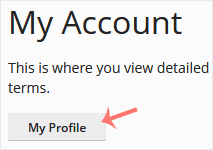
4. Click on Contact Details.
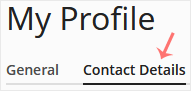
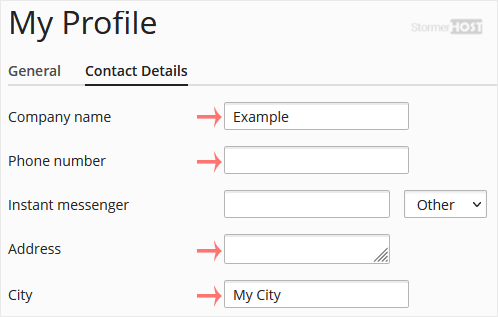
5. Update the details as per your requirements.
6. Click Apply.
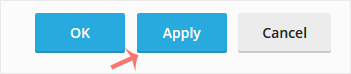
You will see a success message signifying that your Plesk contact details have changed.
Hasznosnak találta ezt a választ?
Kapcsolódó cikkek
How to Edit a File in the Plesk File Manager
Learn how to edit a file directly in the Plesk File Manager. This is useful for making quick...
Learn how to edit a file directly in the Plesk File Manager. This is useful for making quick...
How to Log in to Plesk
A tutorial on how to access the Plesk Control Panel. After you place an order and make a...
A tutorial on how to access the Plesk Control Panel. After you place an order and make a...
How to Change the Password of a Plesk Account
Follow these steps to change your Plesk account password. 1. Log in to your Plesk account....
Follow these steps to change your Plesk account password. 1. Log in to your Plesk account....
How to Reset a Plesk's Account Password
Follow these steps to reset your Plesk account password. 1. Open your Plesk login URL. 2....
Follow these steps to reset your Plesk account password. 1. Open your Plesk login URL. 2....
How to Update a Plesk Account's Email Address
Follow these steps to change your Plesk contact email address. 1. Log in to your Plesk...
Follow these steps to change your Plesk contact email address. 1. Log in to your Plesk...
