
مرکز آموزش
How to Import a Database via phpMyAdmin in cPanel پرینت این مقاله
Importing a database in cPanel using phpMyAdmin is a quick way to restore or migrate your data. With just a few clicks, you can upload your database and get everything running smoothly.
1. Log in to your cPanel account.
2. In the Databases section, click on phpMyAdmin.
3. From the navigation tree in the left sidebar, select an appropriate database in which you want to import data using the SQL file.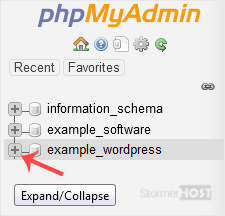
4. Click on Import.
5. Under File to import, click on Choose File and select SQL file from your computer.
6. Scroll down and click on Import.
If it shows a success message, your SQL has been successfully uploaded.
We hope this tutorial is helpful to you.
آیا این پاسخ به شما کمک کرد؟
مقالات مربوطه
How to Create a Database in cPanel
Creating a database in cPanel is quick and straightforward. Follow these steps to set up your...
Creating a database in cPanel is quick and straightforward. Follow these steps to set up your...
How to Rename a Database in cPanel
Creating a database in cPanel is quick and straightforward. Follow these steps to set up your...
Creating a database in cPanel is quick and straightforward. Follow these steps to set up your...
How to Create a Database Username in cPanel
A database username is important for connecting your website or application to the database. You...
A database username is important for connecting your website or application to the database. You...
How to Delete a Database in cPanel
You can delete a database in cPanel. Make sure to take a backup before deleting it because once...
You can delete a database in cPanel. Make sure to take a backup before deleting it because once...
How to Add a User to a Database and Grant Privileges
When managing a database in cPanel, it is important to add a user and set the right permissions...
When managing a database in cPanel, it is important to add a user and set the right permissions...
